Supplies
Scrap kit of choice - I am using "Twilight" by Creationz by Jo available from Creative Scraps and Stargazer Scraps
Tube or image of choice - I am using the lovely artwork of Adam Braun which is free to use provided proper credit is given
**THIS WAS HIS WINNING ENTRY IN THE DEVIANTART TWILIGHT CONTEST HELD IN APRIL/MAY**
WSL_Mask62 by Chelle available from her blog
Fonts of choice - I am using Centime and Twilight
Plugins: Mura Meister Copies;
Eye Candy 4000 Gradient Glow;
dsb Fluxx Bright Noise;
and Alien Skin Xenofex 2 Constellation
Ready? Let's go....
Open a new 600 x 600 blank canvas flood-filled white
Paste ScallopedCircle Frame as new layer
Resize by 40%
Resize by 40%
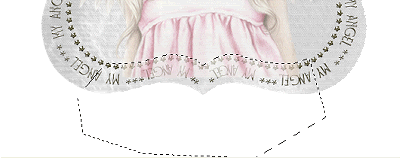
Select inside the Frame with your Magic Wand
Selections > Modify > Expand by 10
Add new raster layer
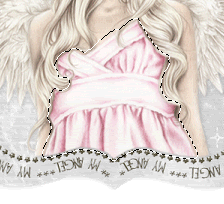
Paste paper of choice INTO selection
Selections > Modify > Expand by 10
Add new raster layer
Paste paper of choice INTO selection
OR (alternatively)
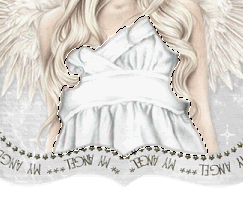
Paste image of choice INTO selection
Deselect
Layers > Arrange > Move Down
Deselect
Layers > Arrange > Move Down
Paste EdwardnBella heart as new layer
Image > Rotate by 20 to the right
Resize by 30%
Position to the lower right
Image > Rotate by 20 to the right
Resize by 30%
Position to the lower right
Paste GlitterRose (of choice) as new layer
Resize by 30%
Resize by 30%
LEAVE IN POSITION
Effects > Plugins > Mura Meister > Copies with the following settings:
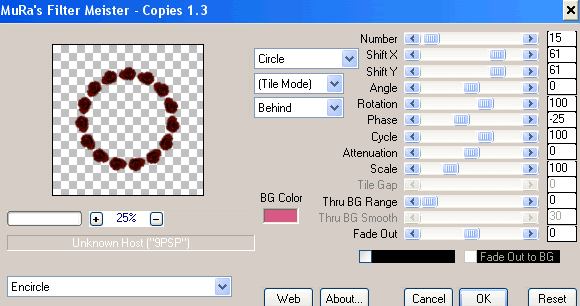
Layers > Arrange > Send to Bottom
Paste Lily as new layer
Resize by 30%
Position behind the Flowers to the right
Resize by 30%
Position behind the Flowers to the right
Paste Flowers as new layer
Image > Rotate by 20 to the right
Resize by 30%
Position to the lower right protruding from the behind the Frame
Image > Rotate by 20 to the right
Resize by 30%
Position to the lower right protruding from the behind the Frame
Activate top layer
Paste ScatteredHearts as new layer
Resize by 75%
Position towards lower left of Frame
Resize by 75%
Position towards lower left of Frame
Paste BeadWire as new layer
Resize by 32%
Position along bottom of Frame
Resize by 32%
Position along bottom of Frame
Paste LoveWord as new layer
Resize by 55%
Position below BeadWire
Resize by 55%
Position below BeadWire
Paste RedApple as new layer
Resize by 25%
Position alongside Roses
Resize by 25%
Position alongside Roses
Paste DiamondHeart as new layer
Resize by 15%
Resize by 15%
LEAVE IN POSITION
Effects > Plugins > Mura Meister > Copies with the same settings as before
Position above the Frame layer
Position above the Frame layer
Resize tag
Paste paper of choice as new layer
Layers > Arrange > Send to Bottom
Layers > Arrange > Send to Bottom
Layers > New Mask Layer > From Image
Locate WSL_Mask62
OK
Layers > Merge > Merge Group
Locate WSL_Mask62
OK
Layers > Merge > Merge Group
Select your Preset Shape Tool and set to Ellipse
Set your Foreground to #000000
Hold your Shift key and draw out a circle
Objects > Align > Centre in Canvas
Set your Foreground to #000000
Hold your Shift key and draw out a circle
Objects > Align > Centre in Canvas
Select your Text Tool and font of choice
I am using Centime - Text Colour #000000
I am using Centime - Text Colour #000000
Type out your text
Open your Vector Layer and hide the Ellipse
Convert to raster layer
Open your Vector Layer and hide the Ellipse
Convert to raster layer
Select your Text Tool again and font of choice
I am using Twilight - Text colour #000000
I am using Twilight - Text colour #000000
Type out your name
Objects > Align > Horizontal Centre in Canvas
Convert to raster layer
Objects > Align > Horizontal Centre in Canvas
Convert to raster layer
Add a drop shadow:
H & V - 1
Opacity - 50
Blur - 10.00
Colour - #690902
H & V - 1
Opacity - 50
Blur - 10.00
Colour - #690902
Finally, add your © copyright, licence and watermark, then save as a GIF or JPG and you're done!
** IF YOU WISH TO ANIMATE PLEASE FOLLOW THESE NEXT STEPS **
Activate the DiamondHearts Layer
Duplicate twice and rename Noise1, Noise2 and Noise3
Hide Noise2 and Noise3 activating only Noise1
Effects > Plugins > dsb Fluxx > Bright Noise with the following settings:
Duplicate twice and rename Noise1, Noise2 and Noise3
Hide Noise2 and Noise3 activating only Noise1
Effects > Plugins > dsb Fluxx > Bright Noise with the following settings:
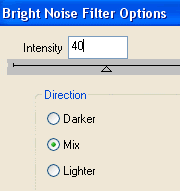
Hide Noise1 and activate Noise2
Apply the Bright Noise effect, adjusting the Noise to 45
Hide Noise2 and activate Noise3
Apply same again, adjusting the Noise to 50
Now activate Mask layer and duplicate twice
Rename Sparkle1, Sparkle2 and Sparkle3
Rename Sparkle1, Sparkle2 and Sparkle3
Hide Sparkle2 and Sparkle3 activating only Sparkle1
Effects > Plugins > Xenofex 2 > Constellation with the following settings:
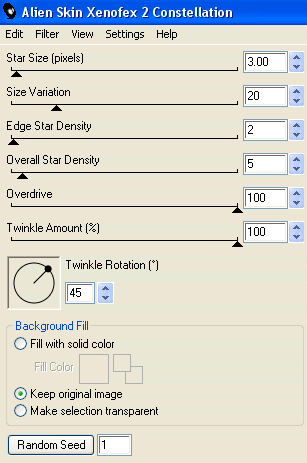
Hide Sparkle1 and activate Sparkle2
Apply the Constellation effect, adjusting the Random Seed
Apply the Constellation effect, adjusting the Random Seed
Hide Sparkle2 and activate Sparkle3
Apply the Constellation effect again, adjusting the Random Seed once more
Hide Noise2, Noise3, Sparkle2 and Sparkle3 again with only Noise1 and Sparkle1 visible
Edit > Copy Merged
Open Animation Shop
Edit > Paste as New Animation
Back to PSP
Hide Noise1 and Sparkle1 and activate Noise2 and Sparkle2
Edit > Copy Merged
In Animation Shop
Edit > Paste AFTER Current Frame
Back to PSP
Hide Noise2 and Sparkle2 and activate Noise3 and Sparkle3
Edit > Copy Merged
In Animation Shop
Edit > Paste after Current Frame
Thanks for trying my tutorial!
::st!na::
Apply the Constellation effect again, adjusting the Random Seed once more
Hide Noise2, Noise3, Sparkle2 and Sparkle3 again with only Noise1 and Sparkle1 visible
Edit > Copy Merged
Open Animation Shop
Edit > Paste as New Animation
Back to PSP
Hide Noise1 and Sparkle1 and activate Noise2 and Sparkle2
Edit > Copy Merged
In Animation Shop
Edit > Paste AFTER Current Frame
Back to PSP
Hide Noise2 and Sparkle2 and activate Noise3 and Sparkle3
Edit > Copy Merged
In Animation Shop
Edit > Paste after Current Frame
Thanks for trying my tutorial!
::st!na::
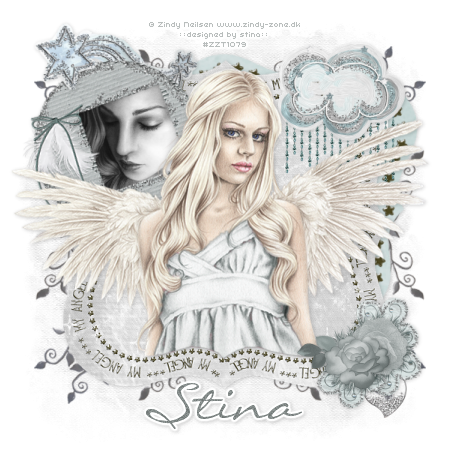
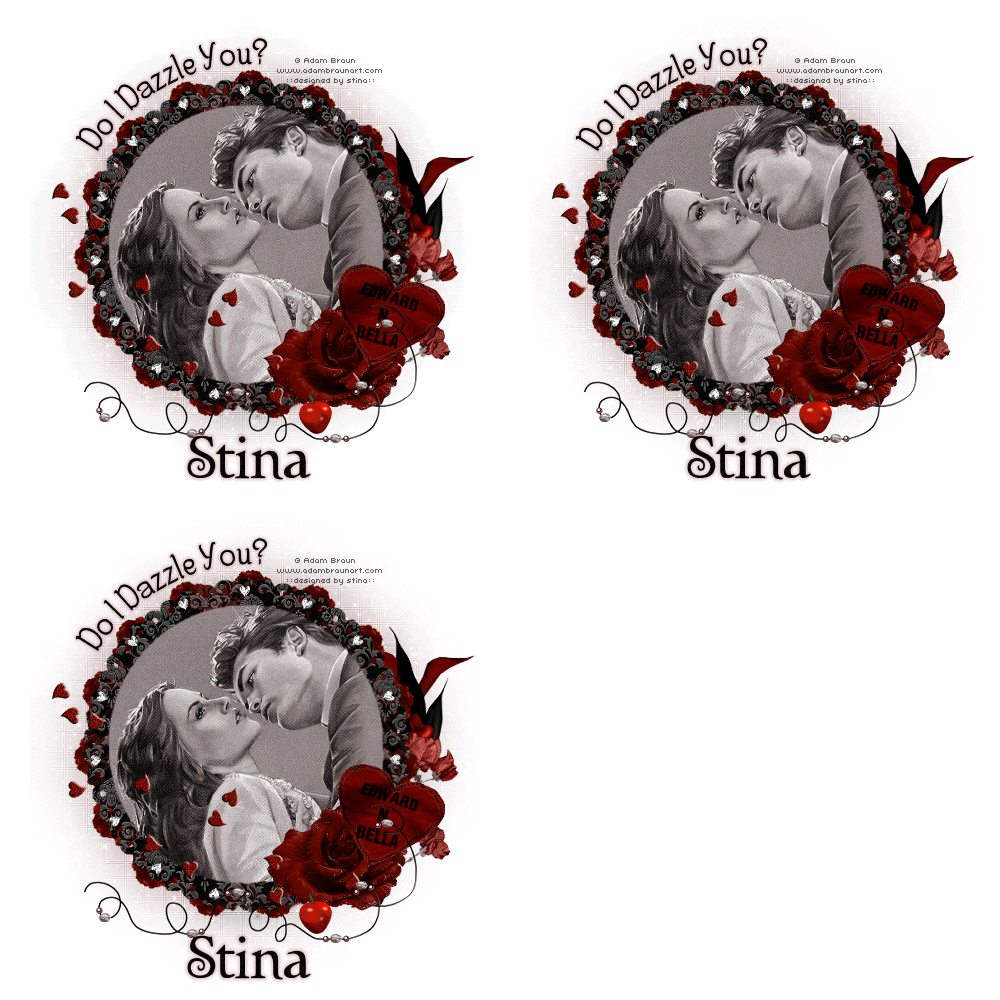
Here is a non-animated version:
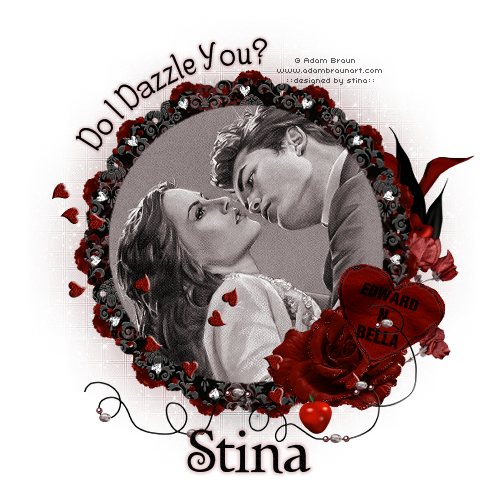
© Tutorial written by Stina on 20th May 2009
All rights reserved
All rights reserved