Supplies
Scrap kit of choice - I am using "I have a Dream" by Shellez Creations available KatelynnsDesigns and Scraps with Attitude
Tube or Image of choice - I am using the lovely artwork of Carolina Seabra which is FTU with proper credit
© Carolina Seabra http://queen-uriel.deviantart.com/
WSL_Mask185 by Chelle available from her blog
Font of choice - I am using Labtop Overscore
Plugins: Eye Candy 4000 Gradient Glow
Xenofex 2 Constellation
Let's begin....
Open a new 800 x 500 canvas flood-filled white
Select your Preset Shape Tool and set to Rectangle
Foreground - #000000
Background - Null
Stroke width - 3.00
Foreground - #000000
Background - Null
Stroke width - 3.00
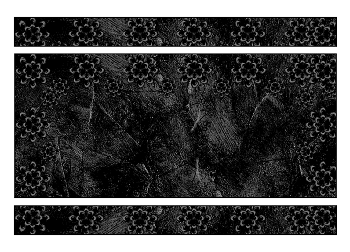
Draw out a rectangle near the top of your canvas
Objects > Align > Horizontal Centre in Canvas
Convert to raster layer
Objects > Align > Horizontal Centre in Canvas
Convert to raster layer
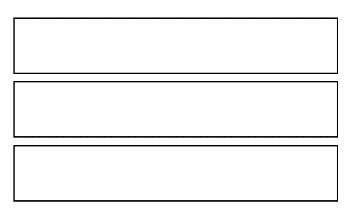
Duplicate, then Image > Flip
Duplicate again and move to the centre in between the top and bottom rectangles
Duplicate again and move to the centre in between the top and bottom rectangles
Hide Background, then
Layers > Merge > Merge Visible
Layers > Merge > Merge Visible
Unhide Background
Select the inside of each of the rectangles with your Magic Wand
Selections > Modify > Expand by 2
Paste a paper of choice as new layer
Position to liking
Selections > Invert
Delete then deselect
Selections > Modify > Expand by 2
Paste a paper of choice as new layer
Position to liking
Selections > Invert
Delete then deselect
Layers > Arrange > Move Down
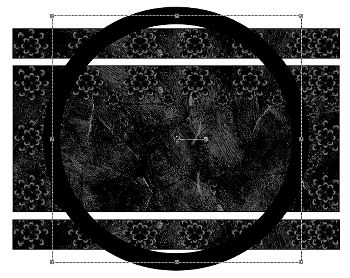
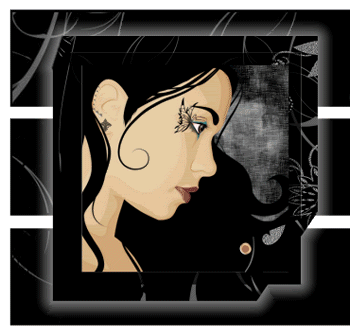
Paste Frame as new layer
Resize by 40%
Position to the left
Resize by 40%
Position to the left
Select the inside of Frame with your Magic Wand
Selections > Modify > Expand by 10
Add a new raster layer
Paste a paper of choice INTO Selection
Layers > Arrange > Move Down
Selections > Modify > Expand by 10
Add a new raster layer
Paste a paper of choice INTO Selection
Layers > Arrange > Move Down
KEEP SELECTED!!
Paste a tube or image of choice as new layer
Resize as necessary and position inside Frame
Selections > Invert
Delete, then deselect
Resize as necessary and position inside Frame
Selections > Invert
Delete, then deselect
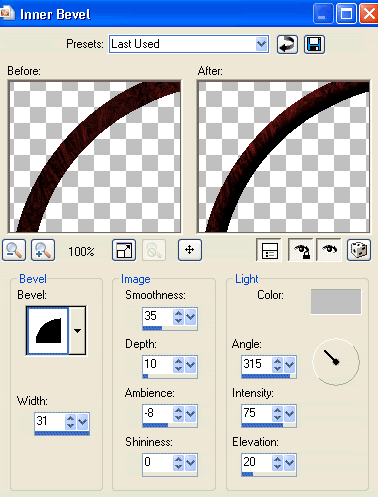
Select the outside of the Frame
Selections > Invert
Selections > Modify > Contract by 2
Selections > Modify > Feather by 2
Selections > Invert
Selections > Modify > Contract by 2
Selections > Modify > Feather by 2
Add a new raster layer
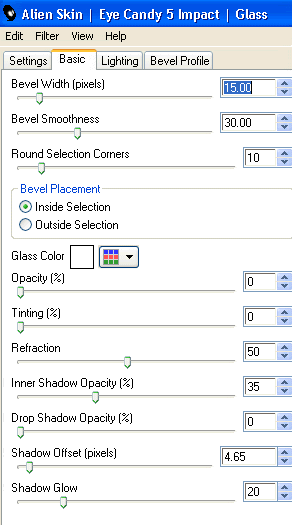
Effects > Plugins > Eye Candy 4000 > Gradient Glow with the following settings:
Glow width - 18.00
Setting - Diffuse
Glow width - 18.00
Setting - Diffuse
Layers > Arrange > Move Down
(Gradient Glow should now be below Frame)
(Gradient Glow should now be below Frame)
Paste Ribbon01 as new layer
Resize by 40%
Layers > Arrange > Send to Bottom
Position along bottom of lower rectangle
Resize by 40%
Layers > Arrange > Send to Bottom
Position along bottom of lower rectangle
Use your Selection Tool to make a small selection around the end
Delete then deselect
Delete then deselect
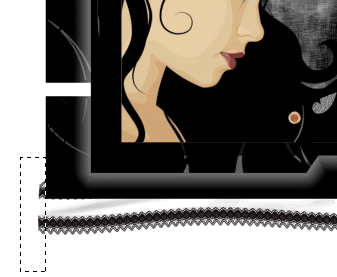
Duplicate, then Image > Flip
Layers > Merge > Merge Down
Layers > Merge > Merge Down
Activate top layer
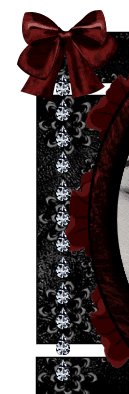
Paste Pendant as new layer
Resize by 50%
Position along bottom of Frame
Duplicate
Set blend mode to Screen
Layers > Merge > Merge Down
Resize by 50%
Position along bottom of Frame
Duplicate
Set blend mode to Screen
Layers > Merge > Merge Down
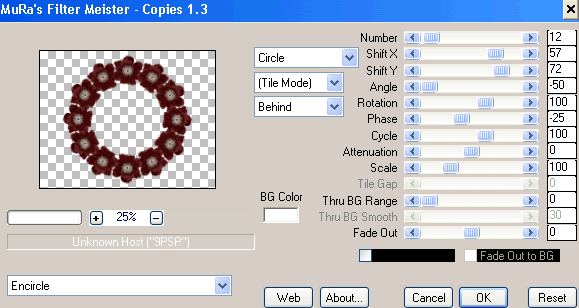
Paste Flower02 as new layer
Resize by 18%
Position to the lower left corner of Frame
Resize by 18%
Position to the lower left corner of Frame
Duplicate and move BELOW Frame and image layers
Position behind Frame to liking
Duplicate and Image > Mirror several times as you wish
Position each to your liking
Position behind Frame to liking
Duplicate and Image > Mirror several times as you wish
Position each to your liking
Paste Ribbon as new layer
Resize to around 60%
Position in upper left of Frame
Resize to around 60%
Position in upper left of Frame
Paste a couple of Butterflies as new layers
Resize by around 10%
Position to liking
Resize by around 10%
Position to liking
Paste Doodle2 as new layer
Image > Rotate by 20 to the right
Resize by 70%
Position in lower right
Image > Rotate by 20 to the right
Resize by 70%
Position in lower right
Layers > Arrange > Send to Bottom
Duplicate then Image > Mirror
Add any other elements you wish
Paste Paper of choice as new layer
Layers > Arrange > Send to Bottom
Layers > Arrange > Send to Bottom
Layers > New Mask Layer > From Image
Apply WSL_Mask185
OK
Apply WSL_Mask185
OK
DO NOT MERGE!!
Select your Pick Tool (Deformation Tool in some versions)
Use the nodes to pull the Mask layer to size to your liking
Use the nodes to pull the Mask layer to size to your liking
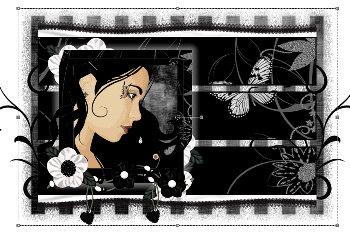
Layers > Merge > Merge Group
Lower opacity to 50
Lower opacity to 50
Crop and resize
Select your Text Tool and font of choice
I am using Labtop Overscore
Text colour - #FFFFFF
I am using Labtop Overscore
Text colour - #FFFFFF
Type out your name and position to liking
Convert to raster layer
Convert to raster layer
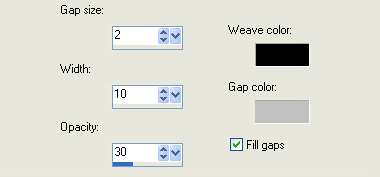
Effects > Plugins > Eye Candy 4000 > Gradient Glow with the following settings:
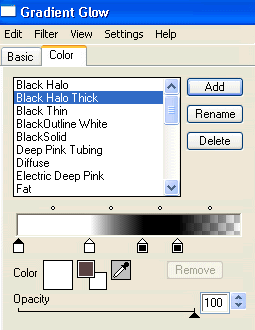
Glow width set to 3.00
Finally, add your © copyright, licence and watermark, then save as a GIF or JPG and you're done!
** IF YOU WISH TO ANIMATE PLEASE FOLLOW THESE NEXT STEPS **
Activate your Mask layer
Duplicate twice
Rename Sparkle1, Sparkle and Sparkle3
Duplicate twice
Rename Sparkle1, Sparkle and Sparkle3
Activate Sparkle1 and hide the other two
Effects > Plugins > Xenofex 2 > Constellation with the following settings:
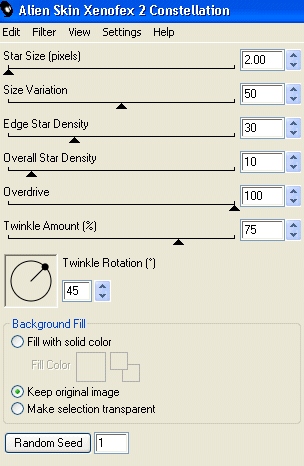
Hide Sparkle1 and activate Sparkle2
Repeat the Constellation effect adjusting only the Random Seed
Repeat the Constellation effect adjusting only the Random Seed
Hide Sparkle2 and activate Sparkle3
Repeat again adjusting the Random Seed once more
Repeat again adjusting the Random Seed once more
Now for the animation!
Hide Sparkle2 and Sparkle3 activating Sparkle1
Edit > Copy Merged
Edit > Copy Merged
Open Animation Shop
Edit > Paste as New Animation
Edit > Paste as New Animation
Back to PSP
Hide Sparkle1 and activate Sparkle2
Edit > Copy Merged
Hide Sparkle1 and activate Sparkle2
Edit > Copy Merged
In Animation Shop
Edit > Paste AFTER Current Frame
Edit > Paste AFTER Current Frame
Back to PSP
Hide Sparkle2 and activate Sparkle3
Edit > Copy Merged
Hide Sparkle2 and activate Sparkle3
Edit > Copy Merged
In Animation Shop
Edit > Paste AFTER Current Frame
Edit > Paste AFTER Current Frame
Save as a GIF and you're done!
Thanks for trying my tutorial!
::st!na::
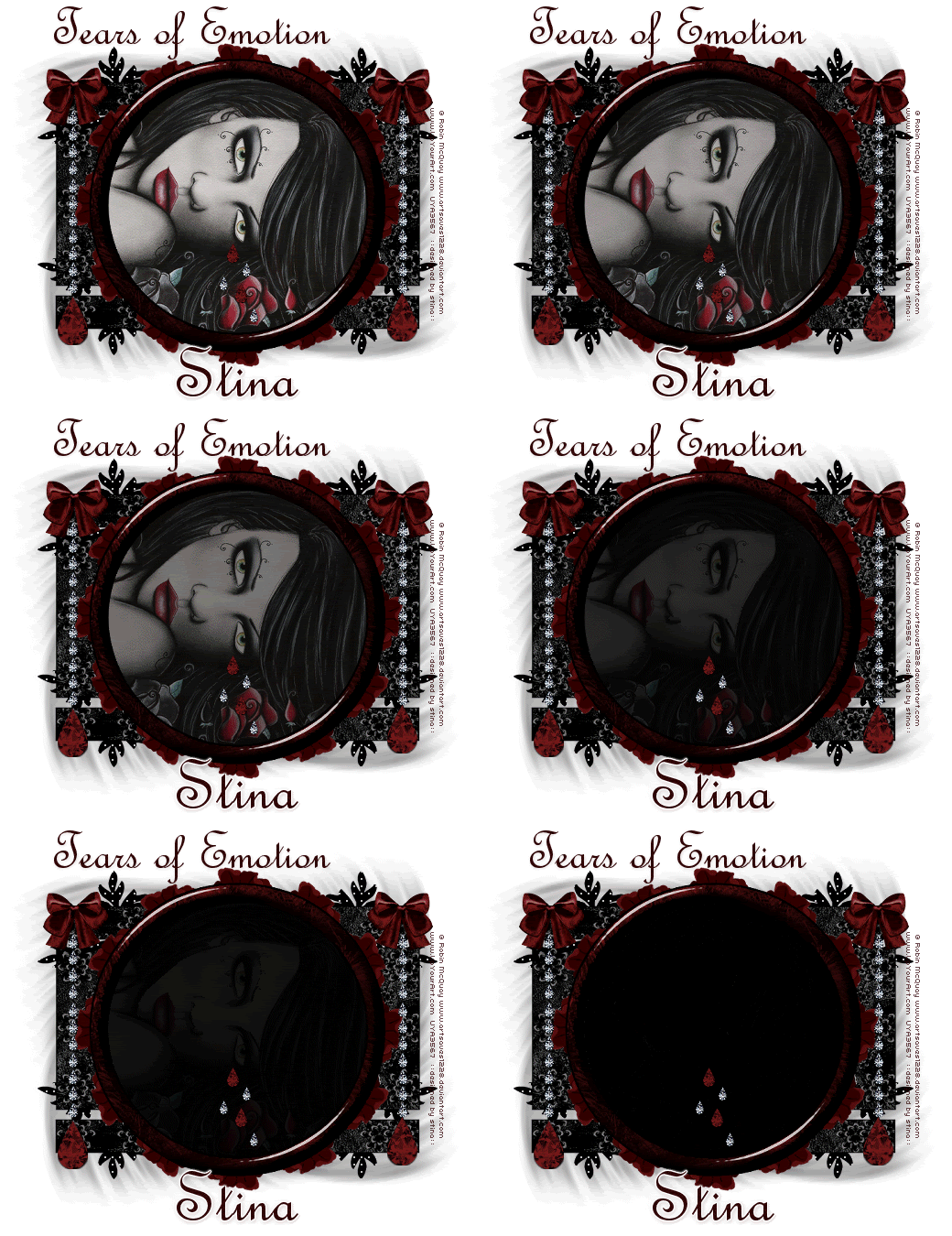
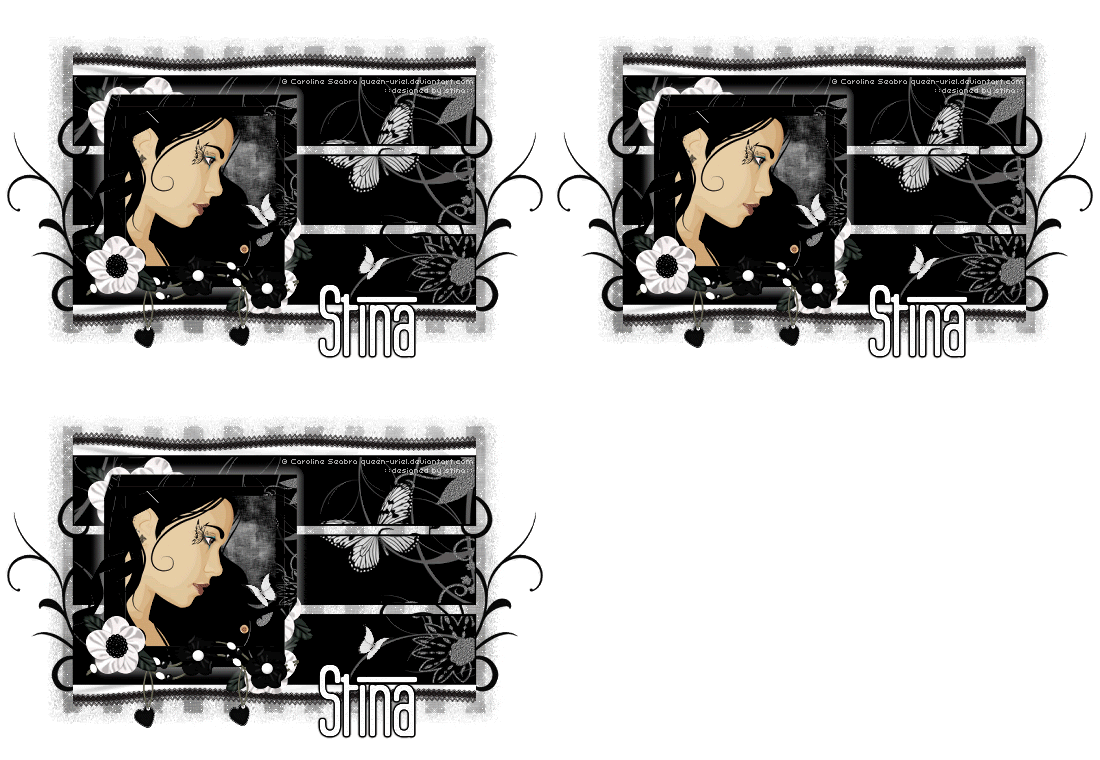
Here is a non-animated version:
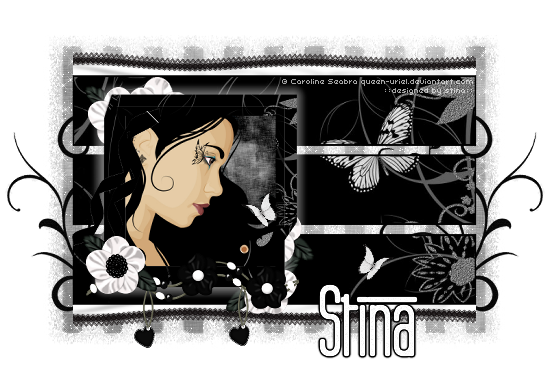
© Tutorial written by Stina on 1st July 2009
All rights reserved