Please email me designed.by.stina@gmail.com with your creations. I'd love to see them.

Showing posts with label Totally Sweet Designs. Show all posts

Friday, September 4, 2009

First Bite


Supplies

Scrap kit of choice - I am using "First Bite" by Oopsie Daisy available from Totally Sweet Designs and Stargazer Scraps
Image of choice - I am using the lovely artwork of Marijke Peeters for which I have permission
UF Mask 4 here
Fonts of choice - I am using Bickham Script Pro Regular
Plugins: Xero > Radiance
PhotoEffex > Scanlines
Greg's Factory Output II > Pool Shadow


Let's begin...


Open a new 750 x 500 blank canvas flood-filled white

In your Materials Palette set your Foreground to #000000

Select your Selection Tool to Rounded Rectangle
Draw out a rectangle to your liking
Add a new raster layer
Flood fill with your Foreground colour

KEEP SELECTED!!

Selections > Modify > Contract by 15
Press delete then deselect

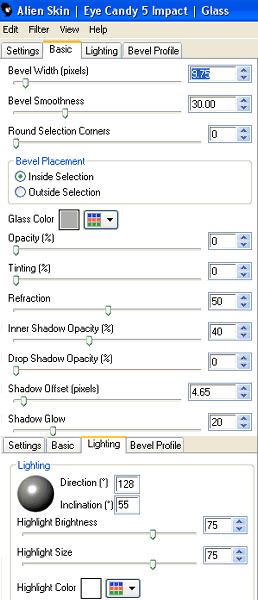
Effect > Plugins > Alien Skin Eye Candy 5: Impact > Glass with the following settings:


Select inside your new Frame with your Magic Wand
Selections > Modify > Expand by 8
Paste a paper of choice as new layer
Layers > Arrange > Move Down (below Frame)
Resize by 70%
Selections > Invert
Delete then deselect

Paste RedChromeSwirl as new layer
Resize by 50%
Position to the lower right
Duplicate then Image > Mirror
Layers > Merge > Merge Down

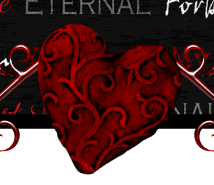
Paste HeartEmb3 as new layer
Image > Rotate by 30 to the left
Resize by 33%
Position at the centre of the Chrome Swirls

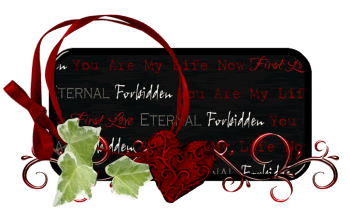
Paste RedRibbonIvy as new layer
Resize by 80%
Position slightly to the left

Select your Eraser Tool and carefully erase the excess ribbon and ivy
So you have something a little like this:

Paste Floral5 as new layer
Image > Mirror
Image > Rotate by 6 to the left
Resize by 30%
Position along the bottom of the heart, swirl and frame

Use your erase to remove excess stem

Paste Apple as new layer
Resize by 15%
Position beside heart

Paste HeartEmb1 as new layer
Image > Rotate by 5 to the right
Resize by 12%
Duplicate, then Image > Mirror
Position them in the upper right

Select inside the RibbonFrame with your Magic Wand
Selections > Modify > Expand by 2

Paste Image of choice as new layer
Resize as necessary and position
Selections > Invert
Delete excess and deselect

Duplicate layer

Effects > Plugins > Xero > Radiance with the default settings
Lower opacity to 50

Paste Paper of choice as new layer
Layers > Arrange > Send to Bottom

Layers > New Mask Layer > From Image
Apply UFMask4
OK
Layers > Merge > Merge Group
Lower opacity to 35

Effects > Plugins > PhotoEffex > Scanlines with default setting

Crop and resize to liking

Select your Text Tool and font of choice
I am using Bickham Script Pro Regular
Text Colour to match tag - I am using #400000

Type out text of choice
Position to liking then convert to raster layer

Select another font of choice
I am using the same script
Text colour slightly lighter - #860c0e

Type out name and position
Convert to raster layer

Effects > Plugins > Greg Factory Output2 > Pool Shadow

Finally, add your © copyright, licence and watermark, then save as a GIF or JPG and you're done!


** IF YOU WISH TO ANIMATE PLEASE FOLLOW THESE NEXT STEPS **

Activate your Mask layer
Duplicate twice and name Shadow1, Shadow2 and Shadow3

Activate Shadow1

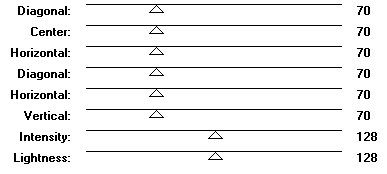
Effects > Plugins > Greg Factory Output 2 > Pool Shadow with the following settings:


Hide Shadow1 and activate Shadow2
Repeat Shadow effect, adjusting the settings from 70 to 90

Hide Shadow2 and activate Shadow3
Repeat Shadow effect, adjusting from 90 to 110

Now to animate!

Activate Shadow1 and hide the other two Shadow layers
Edit > Copy Merged

Open Animation Shop
Edit > Paste as New Animation

Back to PSP
Hide Shadow1 and activate Shadow2
Edit > Copy Merged

In Animation Shop
Edit > Paste After Current Frame

Back to PSP
Hide Shadow2 and activate Shadow3
Edit > Copy Merged

In Animation Shop
Edit > Paste After Current Frame

Select all and change Frame Properties to 30
Now save as a GIF and you're done!

Thanks for trying my turorial!

::st!na::


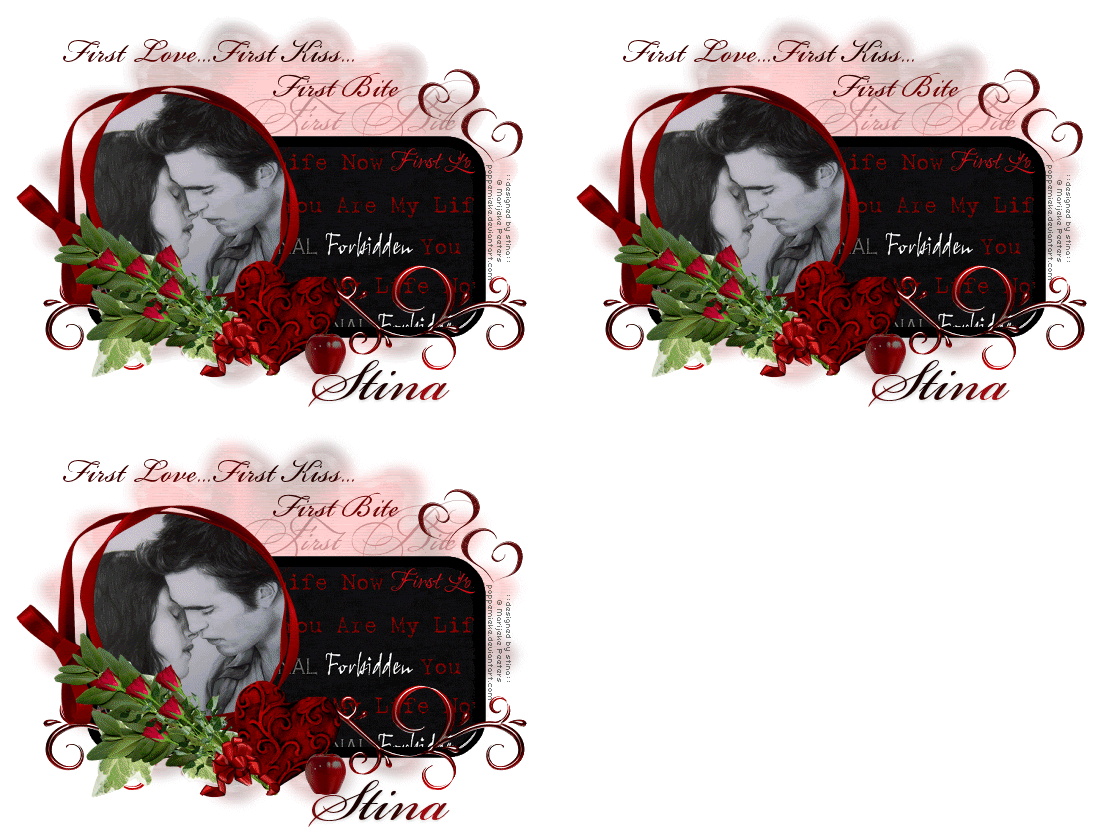
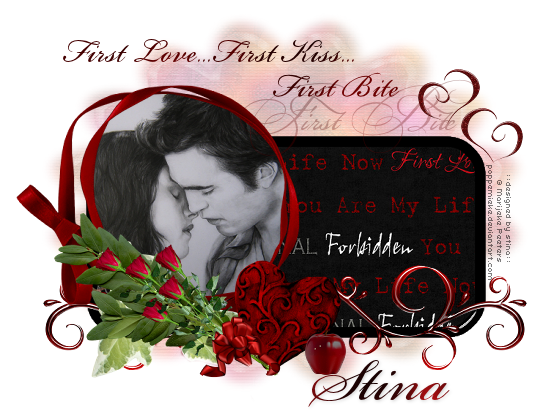
Here is a non-animated version:

© Tutorial written by Stina on 4th September, 2009
All rights reserved

Friday, August 28, 2009

Seduction


Supplies

Scrap kit of choice - I am using "Rock It" by Cora's Creations (formerly Pimp'd Dezigns) available from Totally Sweet Designs and Paradise 4 Scrappers
Tubes of choice - I am using the lovely artwork of Paul John Ballard avialable with a licence through CILM
**PLEASE DO NOT USE HIS ARTWORK WITHOUT THE APPROPROATE LICENCE**
WSL_Mask81 by Chelle available from her blog
Font of choice - I am using A&S Snapper Script
Plugins: Eye Candy 4000 > Gradient Glow and HSB Noise


Let's begin....


Open a new 750 x 500 blank canvas flood-filled white

Paste Frame06 as new layer
Select inside the Frame with your Magic Wand
Selections > Modify > Expand by 20
Selections > Modify > Feather by 2
Delete twice

KEEP SELECTED!!

Selections > Modify > Expand by 10
Paste paper of choice as new layer
Layers > Arrange > Move Down
Selections > Invert
Delete then deselect

Paste Frame08 as new layer
Resize by 60%
Position inside first Frame and move upwards
Selections > Modify > Expand by 10
Add new raster layer
Paste paper of choice INTO selection
Layers > Arrange > Move Down
Selections > Invert
Deselect

Paste some text from the alpha as new layers
Resize each by around 45 - 55% depending on your text of choice
Position each beneath the Inner Frame


Select inside the left Frame and paste a Tube of choice as new layer
Resize as necessary and position
Selections > Invert
Delete then deselect
Set blend mode to Luminance Legacy

Repeat with the right Frame

Paste Eyelet02 as new layer
Resize by 45%
Position to the left edge of outer frame
Duplicate then Image > Mirror
Layers > Merge > Merge Down
Duplicate again
Set blend mode to Overlay
Lower opacity to 50
Layers > Merge > Merge Down

Paste NotebookSheet as new layer
Image > Rotate by 20 to the right
Resize by 60%
Position to the right BEHIND inner Frame


Duplicate, then Image > Mirror
Position in upper left

Activate top layer

Paste Butterfly as new layer
Image > Rotate by 10 to the left
Resize by 30%
Position to the lower left of inner frame
Duplicate then Image > Mirror
Position in the upper right of inner frame

Paste Flower02 as new layer
Resize by 25%

LEAVE IN POSITION!!

Paste Flower04 as new layer
Resize by 20%
Layers > Merge > Merge Down
Position to your liking

Duplicate again
Resize by another 50%
Duplicate and position around canvas

Paste any other elements and position to your liking

Select your text and apply a slight Gradient Glow

Paste Paper of choice as new layer
Layers > Arrange > Send to Bottom

Layers > New Mask Layer
Apply WSL_Mask81
OK
Layers > Merge > Merge Group

Crop and resize tag

Select Text Tool and font of choice
I am using A&S Snapper Script
Text colour Black

Type out your name
Objects > Align > Horizontal Centre in Canvas
Convert to raster layer
Apply a Gradient Glow and drop shadow of choice

Finally, add your © copyright, licence and watermark, then save as a GIF or JPG and you're done!


** IF YOU WISH TO ANIMATE PLEASE FOLLOW THESE NEXT STEPS **

Activate your Frame1 Paper Background layer
Duplicate twice and rename Light1, Light2 and Light3

Activate Light1
Effects > Plugins > Eye Candy 4000 > HSB Noise with the following settings:


Hide Light1 and activate Light2
Repeat Noise, adjusting the Random Seed

Hide Light2 and activate Light3
Repeat Noise once again, adjusting the Random Seed

Now to animate!

Activate Light1 and hide Light2 and Light3
Edit > Copy Merged

Open Animation Shop
Edit > Paste as New Animation

Back to PSP
Hide Light1 and activate Light2
Edit > Copy Merged

In Animation Shop
Edit > Paste After Current Frame

Back to PSP
Hide Light2 and activate Light3
Edit > Copy Merged

In Animation Shop
Edit > Paste After Current Frame

Select all and change Frame Properties to 20
Now save as a GIF and you're done!

Thanks for trying my tutorial!

::st!na::


Here is a non-animated version:


© Tutorial written by Stina on 27th August 2009
All rights reserved

Monday, July 27, 2009

Jacob's Pain


Supplies

Scrap kit of choice - I am using "Dark Nights" by Missy Lynn Scraps available from Totally Sweet Designs, Scraps with Attitude, Paradise 4 Scrappers and Katelynn Designs
Tube of choice - I am using one of the Jacob Black Poser tubes from the Twilight Collection by MediEvil available from Twilight Scraps
Fonts of choice - I am using LDTwylight and TangledUp
Plugin: PhotoEffex Scanlines


Let's begin...


Open a new 700 x 600 blank canvas flood-filled white

Paste Flower7 (black flower) as new layer
DO NOT RESIZE!

Paste Frame6 as new layer
Resize by 70%

Select inside Frame6 with your Magic Wand
Selections > Modify > Expand by 15
Add new raster layer
Layers > Arrange > Move Down
Paste paper of choice INTO selection
Deselect

Duplicate
Adjust > Hue & Saturation > Colourisie
Set both to 0
Lower opacity 70


Back to top layer

Paste Flower2 (leaves) as new layer
Resize by 55%
Position along bottom of Frame

Paste Frame7 as new layer
Resize by 20%
Position in upper left

Paste Tube of choice as new layer
I am using one of MediEvil's posers from her Twilight Saga
Resize and position to your liking

Activate your Frame and select inside with your Magic Wand
Selections > Modify > Contract by 2
Selections > Modify > Feather by 2
Selections > Invert


Now carefully erase the lower part of your Tube, decreasing the shape size and hardness to your liking to erase extra detail

Paste Rose16 (supplied) as new layer
Image > Mirror
Image > Rotate by 30 to the left
Resize by 80%
Position to the lower right

Paste Rose18 (supplied) as new layer
Resize by 80%
Position alongside first rose
Duplicate, then Image > Mirror
Image > Rotate by 15 to the right
Resize by 90% and position


Paste Moon as new layer
Resize by 60%
Move down below Frame layer to the upper left
Duplicate, then set blend mode to Screen

Paste Tree as new layer
Resize by 70%
Position in front of Moon protruding to the left


Crop and resize to your liking

Activate BlackFlower (background) layer
Duplicate
Resize by 110%
Adjust > Blur > Gaussian Blur with a Radius of 20.00
Effects > Plugins > Photo Effex > Scanlines with default settings
Repeat
Lower opacity to 35

Select your Preset Shape Tool and set to Ellipse
Stroke width - 1.00
Foreground - #000000
Background - null

Hold your shift key and draw out a circle around your tag
Objects > Align > Centre in Canvas

Select your Text Tool and font of choice
I am using LDTwylight
Type out text of your choice or use the template I've provided made by me


In your Layer Palette open the vector layer and turn off the Ellipse
Convert to raster layer
Lower opacity to 50

Back to top layer

Select another font of choice
I am using TangledUp
Foreground - #FFFFFF
Background - #000000
Stroke width - 2.00

Type out your name
Objects > Align > Horizontal Centre in Canvas
Convert to raster layer
Apply a drop shadow of choice

Finally, add your © copyright, licence and watermark, then save as a GIF or JPG and you're done!

Thanks for trying my tutorial!

::st!na::


© Tutorial written by Stina on 27th July 2009
All rights reserved

Being a Monster


Supplies

Scrap kit of choice - I am using "Dark Nights" by Missy Lynn Scraps available from Totally Sweet Designs, Scraps with Attitude, Paradise 4 Scrappers and Katelynn Designs
Tube of choice - I am using April Howlett's artwork of Bella Swan available for purchase from Mistaken Art with the appropriate licence
**PLEASE DO NOT USE THIS ARTWORK WITHOUT THE PROPER LICENCE**
Stitching or CrossStitch of choice - I am using CrossRibbons from the "Majestic Midnight Freebie Add On" by Tanya of Scraps by Joe's Wife
WSL_Mask147 by Chelle available from her blog
Font of choice - I am using LDTwylight
Plugins: Filters Unlimited Blue Sky, dsb fluxx Linear Transmission, Mura Meister Cloud and Eye Cand 4000 Gradient Glow


Let's begin....


Open a new 700 x 600 blank canvas flood-filled white

Paste Frame2 as new layer
Resize by 60%
Position to the right
Duplicate, then Image > Mirror
Layers > Merge > Merge Down

Paste some Stitching or CrossStitch as new layer
Resize as necessary
Position between Frames to hold them together

Select the inside of frames with your Magic wand
Selections > Modify > Expand by 15
Paste paper of choice as new layer
Layers > Arrange > Move Down
Resize by 70% and position to liking
Selections > Invert
Delete, then deselect

Effects > Plugins > Filters Unlimited > Color Filters > Blue Sky
Repeat


Paste Tube as new layer
Layers > Arrange > Move Up
Resize as necessary
Position in one of the Frames
With your Selection Tool draw out a rectangle on the exact edge of the outside of the Frame
Selections > Invert


Use your Eraser to remove excess
Duplicate, then Image > Mirror
Layers > Arrange > Move Down
(duplicate should now be BELOW Frame layer)
Resize by 85% and position inside opposite Frame
Set blend mode to Luminance Legacy
Lower opacity to around 40
Rename to BellaShadow

Back to top

Paste Moon as new layer
Resize by 50%
Position in upper corner to your liking
Duplicate and set blend mode to Screen
On original Moon layer lower opacity to 70

Paste Rose as new layer
Resize by 50%
Position in lower left
Use your Freehand Tool to select the lower half and then delete

Paste Tree as new layer
Resize by 60%
Position to the right


Splatter some Blood about

To darken blood:
Duplicate then set blend mode to Multiply
Lower opacity to 60
Layers > Merge > Merge Down

Add a new raster layer
Layers > Arrange > Send to Bottom
Select All
Paste Paper of choice INTO selection
Deselect

Layers > New Mask Layer > From Image
Apply WSL_Mask147

DO NOT MERGE!!!

Activate Mask layer and resize by 110%

Layers > Merge > Merge Group
Lower opacity to 35

Crop and resize to liking

Duplicate Mask layer
Effects > Plugins > dsb fluxx > Linear Transmission with the following settings:


Lower opacity to 15%

Back to top layer

Select your Text Tool and font of choice
I am using LDTwylight
Colour of choice to match your tag - I am using Black

Type out some Text of your choice and position
Apply a drop shadow of choice

Select another font
I am using the same font and text colour

Type out your name
Objects > Align > Horizontal Centre in Canvas
Convert to raster layer
Apply a Gradient Glow and drop shadow of choice

Finally, add your © copyright, licence and watermark, then save as a GIF or JPG and you're done!


** IF YOU WISH TO ANIMATE PLEASE FOLLOW THESE NEXT STEPS **

Activate your BellaShadow layer
Add three new raster layers and name them Cloud1, Cloud2 and Cloud3
Make a selection around the image with your Selection Tool


Activate Cloud1
Effects > Plugins > Mura Meister > Clouds with the following settings:


Hide Cloud1 and activate Cloud2
Repeat Cloud effect, checking the box below Colours

Hide Cloud2 and activate Cloud3
Repeat Cloud effect once more, UNchecking the box again
Deselect

Activate Cloud1 and hide the other two again
Edit > Copy Merged

Open Animation Shop
Edit > Paste as New Animation

Back to PSP
Hide Cloud1 and activate Cloud2
Edit > Copy Merged

In Animation Shop
Edit > Paste after Current Frame

Back to PSP
Hide Cloud2 and activate Cloud3
Edit > Copy Merged

In Animation Shop
Edit > Paste after Current Frame

Select All and change the Frame Properties to 30
Now save as a GIF and you're done!

Thanks for trying my tutorial!

::st!na::


Here is a non-animated version:


© Tutorial written by Stina on 27th July 2009
All rights reserved

Thursday, July 9, 2009

Edward's Passion


Supplies

Scrap kit of choice - I am using "Angelic Passions" by MissyLynn Scraps available from Stargazer Scraps, KatelynnsDesigns, Totally Sweet Designs, Paradise 4 Scrappers and Scraps with Attitude
Images of choice - I am using the lovely artwork of Marijke Peeters from whom I gained permission
WSL_Mask10 by Chelle available from her blog
Fonts of choice - I am using LiorahBT
No Plugins


Let's begin...

.
Open a new 750 x 500 blank canvas flood-filled white

Paste Frame5 as new layer

LEAVE IN POSITION

Draw a rectangle around each Frame
Add a new raster layer
Layers > Arrange > Move Down
Flood fill each Frame Black

KEEP SELECTED!!

Paste three images of choice as new layers
Resize each as necessary to fit
Position within each Frame


Selections > Modify > Invert
Press delete on each layer
Deselect

Paste Flower2 as new layer
Resize by 15%
Position in lower right
Duplicate then set blend mode to Multiply
Lower opacity to 70
Layers > Merge > Merge Down
Duplicate, then Image > Mirror

Paste Flower4 as new layer
Image > Mirror
Resize by 18%
Position alongside Flower2 in lower right
Duplicate, then Image > Mirror

Paste Flower1 as new layer
Image > Mirror
Resize by 12%
Position behind Flowers to the lower left
Duplicate and position a couple of times
Layers > Merge > Merge Down twice


Duplicate, then Image > Mirror

Paste Leaf as new layer
Image > Rotate by 20 to the left
Resize by 12%
Position behind Flowers

Duplicate several times
Mirror and Flip and position each to your liking

Paste Pin as new layer
Resize by 25%
Position to your liking

Paste Passion WordArt as new layer
Resize by 65%
Position along top of Frame to the right

With your Freehand Tool make a selection around the bottom of the WordArt to the far right
Delete the deselect


Paste Paper of choice as new layer
Layers > Arrange > Send to Bottom

Layers > New Mask Layer > From Image
Apply WSL_Mask10
OK
Layers > Merge > Merge Group
Lower opacity to 50

Paste HeartLine as new layer
Position along bottom of Frame

Crop and resize
Select your Text Tool and font of
choice
I am using LiorahBT
Text colour of choice - I am using Black

Type out "Edward's" and position next to the word "PASSION"
Convert to raster layer

Select another font of choice
I am using the same font
Type out your name
Objects > Align > Horizontal Centre in Canvas
Convert to raster layer
Apply a Gradient Glow and drop shadow of choice

Finally, add your © copyright, licence and watermark, then save as a GIF or JPG and you're done!


** IF YOU WISH TO ANIMATE PLEASE FOLLOW THESE NEXT STEPS **

Activate your Image layers
Rename Image1, Image2 and Image3

Activate Image1 at 100% opacity
Lower the opacity of Image2 and Image3 to 45%
Edit > Copy Merged

Open Animation Shop
Edit > Paste as New Animation

Back to PSP
Lower opacity of Image1 to 45% and raise Image2 to 100%
Edit > Copy Merged

In Animation Shop
Edit > Paste after Current Frame

Back to PSP
Lower opacity of Image2 back to 45% and raise Image3 to 100%
Edit > Copy Merged

In Animation Shop
Edit > Paste after Current Frame

Select all and set Frame Properties to 70
Now save as a GIF and you're done!

Thanks for trying my tutorial!

::st!na::

Here is a non-animated version:


© Tutorial written by Stina on 9th July 2009
All rights reserved

Rainbow Dayz


Supplies

Scrap kit of choice - I am using "At the Pond" by Brandi of Grunge and Glitter Scraps as part of the Starving Artists Collab available from Totally Sweet Designs and Stargazer Scraps
Tubes of choice - I am using the wonderful artwork of Suzanne Woolcott available from her store
Template #24 by Yvette available from her blog
WSL_Mask239 by Chelle available from her blog
Font of choice - I am using AKApprique Black
Plugins: Colour Rave Atmospheriser, Eye Candy 4000 Gradient Glow and HSB Noise


Let's begin....


Open Template #24 by Yvette
Shift D to duplicate and close off original

Image > Canvas Resize 750 x 500

Select LargeRectangles with your Magic Wand
Selections > Modify > Feather by 2
Press delete a couple of times to remove greyed area
Paste Paper of choice INTO selection
Deselect

Select SmallRectangles with Magic Wand
Selections > Modify > Contract by 8
Press delete once


Add a new raster layer
Paste another Paper of choice INTO selection
Deselect
Layers > Arrange > Move Down

Paste Rainbow as new layer
Resize by 40%
Position within two Frames

Paste Cloud as new layer
Resize by 35%
Position to your liking

Paste Sun as new layer
Resize by 40%
Position behind Cloud

Paste Raindrops as new layer
Resize by 30%
Position under the cloud

Paste Pond as new layer
Resize by 32%
Position at the base of two Frames

Paste Foliage as new layer
Resize by 35%
Position to the lower left
Duplicate, then Image > Mirror
Position on opposite side

Paste a Frog as new layer
Resize by 15%
Position at the Pond

Paste Mushroom as new layer
Resize by 15%
Position to liking

Paste Turtle as new layer
Resize by 18% and position


Paste three tubes of choice as new layers
Resize each as necessary and position within Frames to your liking
Duplicate each Tube layer and apply the following Plugin to each layer

Effects > Plugins > Colour Rave > Atmospherizer with the following settings:


Lower opacity to around 40 (depending on your tubes)

Add any other elements you wish and apply any drop shadows of choice

Paste Paper of choice as new layer
Layers > Arrange > Send to Bottom

Layers > New Mask Layer > From Image
Apply WSL_Mask239
OK
Layers > Merge > Merge Group
Lower opacity to 30

Crop and resize

Select your Text Tool and font of choice
I am using AKAppriqueBlack
Text colour of choice - I am using on of the papers

Type out your name
Objects > Align > Horizontal Centre in Canvas
Convert to raster layer
Apply a Gradient Glow and drop shadow of choice

Finally, add your © copyright, licence and watermark, then save as a GIF or JPG and you're done!


** IF YOU WISH TO ANIMATE PLEASE FOLLOW THESE NEXT STEPS **

Activate your Pond layer
Duplicate twice and rename Water1, Water2 and Water3

Activate Water1 and hide Water2 and Water3
Effects > Plugins > Eye Candy 4000 > HSB Noise with the following settings:


Hide Water1 and activate Water2
Repeat HSB Noise again adjusting the Random Seed

Hide Water2 and activate Water3
Repeat HSB Noise once again, adjusting the Random Seed

Activate Water1 and hide Water2 and Water3
Edit > Copy Merged

Open Animation Shop
Edit > Paste as New Animation

Back to PSP
Hide Water1 and activate Water2
Edit > Copy Merged

In Animation Shop
Edit > Paste after Current Frame

Back to PSP
Hide Water2 and activate Water3
Edit > Copy Merged

In Animation Shop
Edit > Paste after Current Frame

Select all and set Frame Properties to 50
Now save as a GIF and you're done!

Thanks for trying my tutorial!

::st!na::


Here is a non-animated version:


© Tutorial written by Stina on 9th July 2009
All rights reserved

Thursday, July 2, 2009

It's Not the End...


Supplies

Scrap kit of choice - I am using the gorgeous "Dance With Me Edward" by Oopsie Daisy available from Totally Sweet Designs and Stargazer Scraps
Images of choice - I am using two from the movie Twilight © Summit Entertainment
20-20 Mask (supplied)
Warped Mask (supplied)
Lace Strip (supplied)
Fonts of choice - Pablo LET and BakerScript


Let's begin...


Open a new 700 x 500 blank canvas flood-filled white

Open a Paper of choice and minimise

Select your Preset Shape Tool and set to Rectangle
Foreground - #000000
Background - Pattern

Click on the Background and set to your Paper of choice from the Patterns tab
Draw out a rectangle on your canvas
Objects > Align > Centre in Canvas
Convert to raster layer

Paste Raindrops as new layer
Resize by 50%
Position to the left
Duplicate then Image > Mirror

Use your Selection Tool to make a selection around the excess overlapping in the middle
Delete then deselect
Layers > Merge > Merge Down
Lower the opacity to 20

Adjust > Hue & Saturation > Colourise with the following settings:


Paste Frame3 as new layer
Resize by 40%
Position to the right

Select inside the Frame with your Magic Wand
Selections > Modify > Expand by 10
Paste an Image of choice as new layer

Layers > Arrange > Move Down
Resize as necessary to fit inside Frame
Set blend mode to Luminance Legacy
Duplicate
Set blend mode to Normal and lower opacity to 40
Duplicate again, then
Set blend mode to Soft Light and opacity back to 100

Open another Image of choice
Before we paste it onto our canvas we are going to mist it with a Mask

Layers > New Mask Layer > From Image
Apply 20-20 Mask
OK
Layers > Merge > Merge Group

Paste new misted image as new layer
Resize as necesssary and position to the right of Frame
Layers > Arrange > Move Down
Lower opacity to 45
Select the outer area of Rectangle with Magic Wand
Selections > Modify > Expand by 2
Activate misted image and delete excess
Deselect


Paste ChromeSwirl as new layer
Resize by 30%
Position in lower left towards bottom of rectangle layer

Paste Lace strip (of choice or one I supplied) as new layer
Resize by 38%
Position in lower right along bottom of Rectangle
Duplicate, then Image > Mirror
Layers > Merge > Merge Down

Paste Floral1 as new layer
Resize by 20%
Position in lower left of Frame

Paste GemMoon as new layer
Resize by 60%
Layers > Arrange > Move Down
Position behind Leaves and Floral1


Paste Leaves as new layer
Image > Mirror and resize by 30%
Position in lower right

Paste OwlBranch as new layer
Resize by 35%
Position over Leaves in lower right

Paste Floral2 as new layer
Resize by 20%
Position in lower left

Paste Floral5 as new layer
Resize by 15%
Position alongside Floral2

Paste Lights as new layer
Position to the upper right
Duplicate, then Image > Mirror, then Image > Flip
Place in position alongside first set of Lights
Layers > Merge > Merge Down


Paste Paper of choice as new layer
Layers > Arrange > Send to Bottom

Layers > New Mask Layer > From Image
Apply Warped mask
Layers > Invert Mask Layer
Layers > Merge > Merge Group
Lower opacity to 30

Adjust > Blur > Radial Blur with the following settings:


Select your Text Tool and font of choice
I am using Pablo LET (Bella's handwriting)
Text colour to match - I am using #181845

Type out text or quote of choice
Objects > Align > Horizontal Centre in Canvas
Convert to raster layer
Apply a drop shadow of choice

Select another font of choice
I am using Baker Script
Same Text colour

Type out your name
Objects > Align > Horizontal Centre in Canvas
Convert to raster layer
Apply a drop shadow of choice

Finally, add your © copyright, licence and watermark, then save as a GIF or JPG and you're done!


** IF YOU WISH TO ANIMATE PLEASE FOLLOW THESE NEXT STEPS **

Activate your Lights layer
With your Magic Wand set to a Tolerance of 40 select every second bulb
Layers > Promote Selection to Layer

Adjust > Brightness & Contrast > Brightness/Contrast with the following settings:


Rename Lights1 and hide layer

Back to original Lights layer
Select every OTHER second bulb with Magic Wand
Layers > Promote Selection to Layer

Adjust > Hue & Saturation > Colourise with the same settings as above, then
Brightness and Contrast with same settings again
Rename Lights2

Now for the animation!

Hide Lights2 and activate Lights1
Edit > Copy Merged

Open Animation Shop
Edit > Paste as New Animation

Back to PSP
Hide Lights1 and activate Lights2
Edit > Copy Merged

In Animation Shop
Edit > Paste AFTER Current Frame

Select all and set your Frame Properties to 30
Save as a GIF and you're done!

Thanks for trying my tutorial!

::st!na::


Here is a non-animated version:


© Tutorial written by Stina on 1st July 2009
All rights reserved