Please email me designed.by.stina@gmail.com with your creations. I'd love to see them.

Wednesday, May 4, 2011

Friendship


Supplies

Image of choice
Fonts of choice - I used Bickham Script Regular and Kinkie
Plugins:
Alien Skin Eye Candy Impact / Gradient Glow
Eye Candy 4000 / HSB Noise
Penta.com / Color and Dot
Paint Shop Pro
Animation Shop


Open an image of choice - I am using a private photo
Resize to your liking
Mine is 650 x 320

Duplicate and turn visibility off duplicate layer
On original layer With original layer active go to:

Adjust / Blur / Gaussian Blur
Radius - 20.00

Now activate the top layer
Select your Magic Wand with the following settings:
Selection Type: Point to Point
Mode: Add (Shift)
Feather: 5
Smoothing: 0

Now carefully draw around the subject in your image you wish to use and invert selection


Press Delete
You may need to tidy areas to your liking

On the bottom layer duplicate layer again
Go to:
Effects / Plugins / Penta.com / Dot and Cross
Default settings
The lower the opacity to 30

Activate your top layer and duplicate
Layers / Arrange / Move Down

Adjust / Blur / Gaussian Blur
Radius - 10.00

Activate top layer again
With your Selection Tool set to Rectangle, Feather 0
Draw out a thin rectangle towards bottom of image


Add a new raster layer
Flood fill rectangle white
Deselect
Lower opacity to 25

Add a new raster layer
Flood fill black
Select All
Selections / Modify / Contract by 2
Delete then deselect

Choose an italic font of choice in white
Type a few words of choice
Lower opacity to 40

Choose a nice bold font and type your name
Objects / Align / Horizontal Centre
Convert to raster layer

Effects / Plugins / Alien Skin Eye Candy Impact / Gradient Glow


** FOR ANIMATION **

Activate the bottom (background) layer
Duplicate twice
Rename Noise 1, Noise 2 and Noise 3

On Noise 1 go to:
Effects / Plugins / Eye Candy 4000 / HSB Noise with the following settings:


Activate Noise 2 and repeat, changing the Random Seed

Activate Noise 3 and repeat again, changing the Random Seed once more

Hide Noise 2 and Noise 3
Edit / Copy Merged

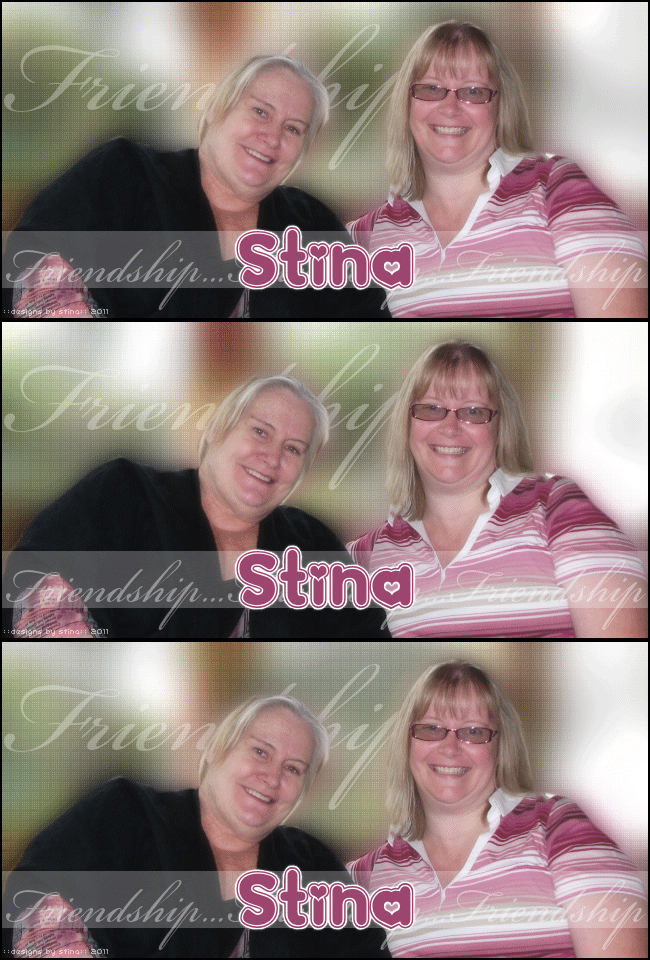
Open Animation Shop and Paste as New Animation

Back in PSP, activate Noise 2, then Copy Merged
In Animation Shop, paste after Current Frame

Repeat for last frame

Press CTRL A to Select All Frames, then ALT + Enter to open Frame Properties
Change the number to 35

Save as a GIF and you're done.


© Tutorial written by Stina on 4th May 2011

Tuesday, March 15, 2011

A Birthday at Rainbow Bridge

Rainbow Bridge Tooty

This tutorial is written in honour of Tooty, Susan of Tootypup Scraps' faithful friend who went to Rainbow Bridge 6 months ago. Today marks what would have been Tooty's 18th birthday.


Supplies:

Scrap kit: "Rainbow Bridge (Part 1)" by Tootypup Scraps which can be purchased at Twilight Scraps or Aussie Scraps
Image or Tube of choice - I used one of Tooty herself by Susan of Tootypup Scraps
Fonts of choice - I used Kinkie, Valentina JF and 2 Peas Quirky
No plugins


Open a new 800 x 900 transparent image

Paste a Rainbow Bridge scene as a new layer
Resize by 80% and position it toward the bottom of your canvas

Add a drop shadow as follows:
Vertical: -5
Horizontal: 0
Opacity: 20
Blur: 30
Colour: Black

Paste a rainbow of choice as new layer and position slightly to the left
Lower opacity to your liking - I used 55

Open one of the frames and paste as new layer
Resize by around 65% or to your liking and position to the left

You should have something like this:


Now with your Freehand Selection tool set to the following:
Selection type: Point to Point
Mode: Add (Shift)
Feather: 0
Smoothing: 0
Anti Alias: checked

Draw around the inside of the frame as below:


Paste a paper of choice as new layer
Layers / Arrange / Move Down
(this will move it down one layer to just beneath the frame
Resize it to your liking
Selections / Invert
Press Delete

KEEP SELECTED!!

Now paste a tube or image of your choice
Resize and position to your liking
If you are using a tube, duplicate and turn the visibility off this layer
Press Delete to remove excess of your tube

Turn the visibility on your duplicate layer again
Layers / Arrange / Move Up
(this will move the image above the frame)

Now on the frame layer use your Magic Wand to select inside the frame
Invert Selection
Then on your top image layer with your Eraser tool carefully erase any excess you do not want overlapping the frame, and in this case to bring the greenery over the top of the tube/image
The tube is duplicated because whatever you erase on the top layer is not erased beneath

Paste Dove as new layer
Resize by 30%
Position in upper left corner

Paste one of the blue papers as a new layer
Layers / Arrange / Send to Bottom

Adjust / Blur / Motion Blur with the following settings:
Angle: 180
Strength: 100

Use your Selection Tool set to Rectangle and no feather to draw out a rectangle at the bottom of your canvas


Press delete on the bottom layer
Deselect

Layers / Merge Visible

Add a new raster layer
Flood fill with a colour of your choice
I used black

Selections / Modify / Contract by 5
Press Delete
Deselect

With your Freehand Selection tool amd using the same settings as before carefully draw out where the grass in the "scene" ends as below:


Press Delete
Deselect

Now add any text you wish, your name and credit details
Resize to your liking then save as a PNG and you're done!


© Tutorial written by Stina on 15th March 2011

Wednesday, September 1, 2010

Autumn Splendor

Supplies

Scrap kit - Heartfelt Perfections part of the "Fall-Ever Friends" collab available from Twilight Scraps, Scrappin Warehouse, Aussie Scraps and Heartfelt Perfections
Tube of choice
Fonts of choice
Plugins: Xero > Soft Mood


Open Deco Frame and resize to 600 x 600

With your magic wand select inside the frame

Selections > Modify > Expand by 10
Paste a paper of your choice as a new layer
Resize to your liking, then
Layers > Arrange > Move Down

Now still on your paper layer
Selections > Invert
Then Delete

KEEP SELECTED!!

Paste a tube of choice as new layer
Resize as needed
Then press Delete again to remove excess
Deselect

On same layer
Effects > Plugins > Xero > Soft Mood
Apply default settings

Activate top layer

Paste a bow of choice as new layer
Resize by about 50% or to your liking
Position on or below the flowers on the Frame to your liking
Apply a drop shadow of choice

** Optional **

To make it look as though the bow is tucked below the flower, open "flower" element
Paste as new layer
Resize by 28%
Position over the middle flower carefully to hide the already existing one

Go to Adjust > Brightness & Contrast > Brightness/Contrast with the following settings:
Brightness - 20
Contrast - 11
OK

With your eraser, carefully erase some of the excess of the top flower

Now paste Leaves as a new layer
Resize by 50%
Position to the left and toward the top
Duplicate
Move second layer down slightly

Now Image > Canvas Size
700 x 700 centre checked

Add a new layer and move to bottom
Flood fill this white

Choose a paper of choice and paste as new layer
Apply a mask of you choice
I am using WSL_Mask328
Layers > Merge Group
Position mask directly behind frame
Lower opacity to around 50

You can either keep or delete the white background
(I prefer to remove it for a transparent background, except for animation)

Add your copyright and licence information
At this point, you can also add your name and whatever other text you choose

I used KonTikiTraderJF font at size 90
Colour - #a94605
Then I applied Photo Effex > Scanlines,
Then EC Impact > Gradient Glow
Glow Colour - #ffdf30
Then a slight drop shadow

Merge layers visible


NoW...for animation (which is entirely optional)

Paste Single Leaf as a new layer
Resize by 15%, then again by 70%
Duplicate
Image > Rotate to your liking

Duplicate again
Repeat rotation of choice (changing rotation)
Repeat another three times

You should now have FIVE leaf layers
Rename them 1, 2, 3, 4 and 5
Position them on the tag to your liking

Hide all layers but 1
Layers > Copy Merged

Paste as new image

Hide Layer 1 and unhide 2
Layers > Copy Merged
On new image, paste as new layer

Repeat till you have copied layers into a new image
You should have FIVE complete layers

Save as PSP Animation file (some versions might also call this a PSP 7 Animation file .psp) somewhere you can locate it

Minimse PSP and open Animation Shop
File > Open and browse for the image you just saved

The file will now open with FIVE frames

Press CTRL A to Select All
Then ALT + Enter to bring up the frame properties
Change to 40
OK

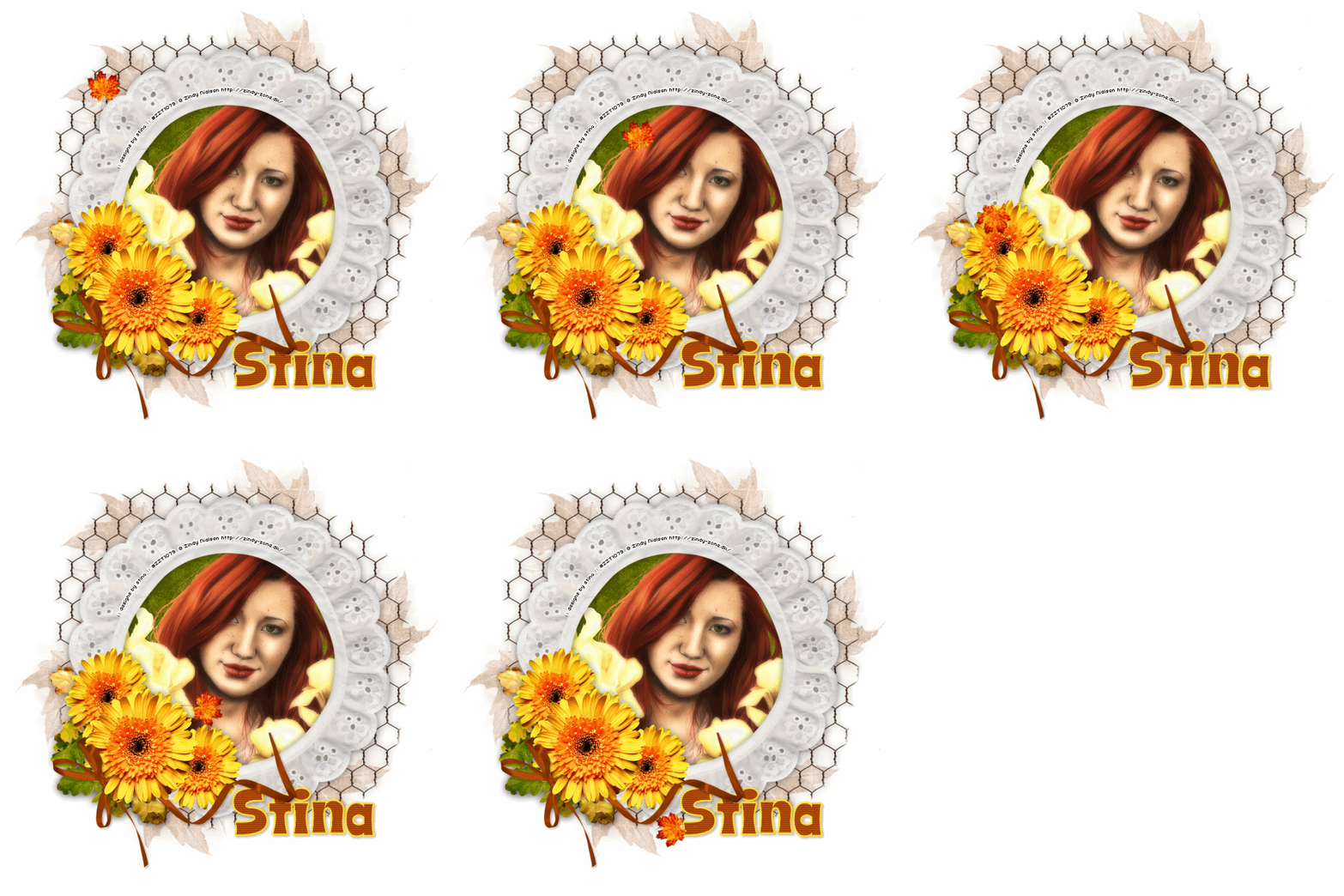
Then save through the Optimization Wizard and you're done!


Below is a still version of the tag also:

© Tutorial written by Stina on 29th August 2010