Please email me designed.by.stina@gmail.com with your creations. I'd love to see them.

Thursday, October 27, 2011

Smokin' Hot

Smokin Hot

Supplies

Scrap kit of choice - I am using the FTU Burlesque Collab by Avenue Did Me and Misty Scraps
Tube of choice - I am using the FTU artwork of Medusa-The Dollmaker
Font of choice - I am using TikiSurf
Plugins:
Xero Soft Mood
Xero Porcelain
Eye Candy 5 Impact Gradient Glow
Eye Candy 4000 HSB Noise


Open a new transparent image 600 x 300
Paste a paper of your choice as a new layer (I used ADM-Paper(4)

Paste "bur-ms diamond star" as new layer
Set blend mode to Multiply
Duplicate
Layers / Merge / Merge Down

With your Selection Tool draw out a rectangle along the centre of the canvas

Photobucket

Now paste a paper of choice as a new layer (I used ADM-Paper(1)
Resize by around 75%
Selections / Select all, then Invert
Delete then deselect
Duplicate layer and set blend mode to Multiply
Layers / Merge / Merge Down

Paste a tube of choice as new layer - I am using the FTU artwork of Medusa
Resize to your liking (I resized by 50%)
Position to the right
Duplicate tube layer
Effects / Plugins / Xero / Soft Mood with default settings
Lower the opacity of this layer to around 65 or to your liking
Layers / Merge / Merge Down

Paste another tube of choice (from same artist) as new layer
Resize by around 50% or to your liking
Position to the far left
Duplicate
Effects / Plugins / Xero / Soft Mood with default settings
Lower the opacity of this layer to around 80 or to your liking
Layers / Merge / Merge Down

Paste ADM-Element(10) as new layer (or one similar)
Move it below the tube layers and position toward top of rectangle

You should have something like this:

Photobucket

Add a new raster layer
Flood fill black
Selections / Select All, then Modify / Contract by 2
Delete
Selections / Modify / Contract by 6
Selections / Invert
Activate your bottom layer
Selections / Promote Selection to Layer
Deselect
Move to second layer from the top

Effects / 3D Effects / Inner Bevel with the following settings:

Photobucket

Select a font of your choice - I am using TikiSurf
Type out your name using a black stroke and a colour from the tag
Position between the tubes in the rectangle

Effects / Plugins / Xero / Soft Soft Mood with default settings

Then Effects / Plugins / Alien Skin Eye Candy 5 Impact / Gradient Glow with the following settings:

Photobucket
Photobucket

Now add your credits

ANIMATION

Duplicate your background layer twice


Hide the second and third layers and activate the first

Effects / Plugins / Eye Candy 4000 / HSB Noise with the following settings:

Photobucket

Now hide the first layer and activate the second
Repeat the effect adjusting the random seed to your liking
And repeat once again with the third layer

Hide the second and third background layers again and activate the first
Edit / Copy Merged

Open Animation Shop
Paste as new animation

Back to PSP
Hide first layer and activate second
Edit / Copy Merged

In Animation Shop
Paste after Current frame

Back to PSP
Hide second layer and activate third
Edit / Copy Merged

In Animation Shop
Paste after current frame

Select All
ALT + Enter to open Frame Properties
Change to 20

Save as a GIF and you're done

Thank you for trying my tutorial!

Smokin Hot


© Tutorial written by Stina on 27th October 2011

Burlesque

Burlesque
Supplies

Scrap kit of choice - I am using the FTU Burlesque Collab by Avenue Did Me and Misty Scraps
Tube of choice - I am using the FTU artwork of Medusa-The Dollmaker
Mask of choice - I am using WSL_Mask286
(the alternate one is ww-edgemask6)
Font of choice - I am using PassionsConflictROB
Plugin:
Alien Skin Xenofex 2 Constellation


Open the "bur-ms filigree frame"
Shift + D to duplicate it, then close the original
Image / Canvas Resize
Width - 700
Height - 750
Centre checked

First of all let's greyscale the frame so it is completely black
Adjust / Hue and Saturation / Colourise
Then set both to 0

With your Selection tool on Point to Point draw around the frame parts, keeping in the black borders
(I tried using the Magic Wand inside the frames but there appears to be some "noise" the wand picks up)

Photobucket

KEEP SELECTED!

Paste a paper of your choice as a new layer
Move paper below frame
Selections / Invert
Delete

KEEP SELECTED!

Paste tube of choice as new layer
I am using the FTU artwork of Medusa-The Dollmaker and the tube "Burlesque", which I mirrored before pasting as new layer
Resize (I resized by 75%) and position to your liking
Press delete to remove the excess outside the frame

KEEP SELECTED!

Duplicate tube and position to your liking in the right frame
Move below the first tube layer
Delete (to remove excess)

Adjust / Hue and Saturation / Colourise
Set both to 0
This layer should now be greyscale

Photobucket

STILL SELECTED!

Now I mirrored the tube back to its original state
Paste as new layer and resize by 75%
Position in the left from to your liking
Delete to remove the excess
And deselect

This is what I now have:

Photobucket

Paste the ADM-Element(7) as new layer and resize by 90%
Position toward lower right

Paste "bur-ms word art 1" as new layer
Resize by 95% and position to lower right over the bottom of the Feathered fan

Paste another paper of choice and move it to the bottom layer of the canvas
Layers / Load/Save Mask / Load Mask from Disk
Select Mask of choice - I am using WSL_Mask286
Apply
Layers / Merge / Merge Group

Now before we do anything else resize the tag to your liking

Add your credits to the artist etc.
Then add your name in a font of your choice


ANIMATION

I also animated the Word Art but for simplicity's sake I will refer only to the Mask layer - it is up to you if you wish to animate the Word Art as well

Now for the animation we need to have a background because the optimisation will add ugly black excess to anything transparent
So before we animate just add a white background layer to your canvas


Duplicate the mask layer twice
Hide the second and third layers and activate the first

Effects / Plugins / Alien Skin Xenofex 2 / Constellation with the following settings:

Photobucket

Hide the first layer and activate the second layer
Repeat effect, adjusting the Random Seed

Repeat with the third layer once again

Hide second and third layers and activate the first layer again
Edit / Copy Merged

Go to Animation Shop
Paste as New Animation

Back to PSP
Hide first layer and activate second layer
Edit / Copy Merged

In Animation Shop
Paste AFTETR current Frame

Back to PSP
Hide second layer and activate third
Edit / Copy Merged

In Animation Shop
Paste after current frame

Select all frames
ALT + Enter to open Frame Properties
Change to 20

Save as a GIF and you're done!

Thank you for trying my tutorial!


Here is another version using a different mask:
Burlesque 02

© Tutorial written by Stina on 27th October 2011

Wednesday, October 26, 2011

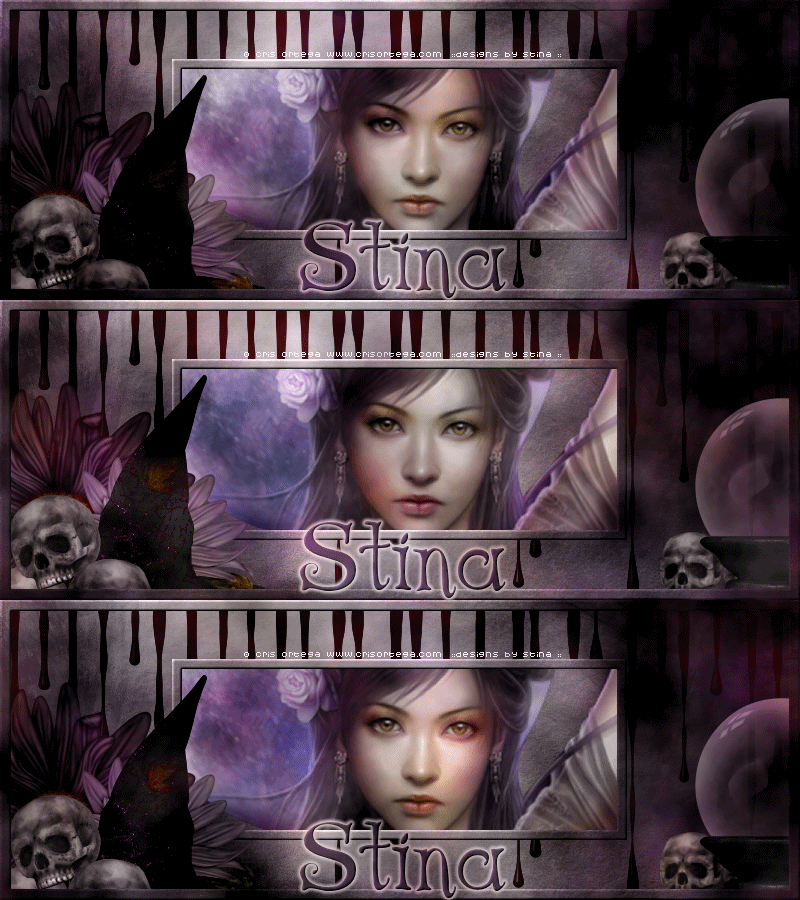
Magical Beauty


Supplies

Scrap kit of choice - I am using one of my own "Black Magic" which is Full Size and is available for purchase from Twilight Scraps, Aussie Scrap Designs and Scrap Wishes
Tube or image of choice - I am using the FTU artwork of Cris Ortega
Font of choice - I am using AL Age Old Love
Plugins:
Eye Candy 4000 HSB Noise


Open a paper of choice and duplicate it
Close original paper
Resize to 800 x 800

Image > Canvas Size with the following settings:
Width - 800
Height - 300
Centre square checked
OK

Open DBS_Blood
Resize to 800 pixels wide
Paste as new layer and position to liking
Set blend mode to multiply

Select your Preset Shapes tool
Set to Rectangle, stroke width about 2.0
Create as Vector layer checked
Draw out a rectangle in the centre of the canvas
Objects > Align > Centre in Canvas
Convert to raster layer

With your Magic Wand select inside the rectangle
Selections > Modify > Contract by 10
Flood fill with black
Selections > Modify > Contract by 1
Delete, then deselect

You should now have something like this:


Select inside the borders with your Magic Wand


Now activate your bottom layer
Effects > 3D Effects > Inner Bevel with the following settings:


Selections > Promote Selection to Layer
Then deselect
Move your new Frame layer to the top

You can delete the previous border layer as this was just for outlining the frame

With your Magic Wand select inside the frame
Selections > Modify > Expand by 5
Activate the blood layer and delete

KEEP SELECTED!!

Paste a tube of your choice - I am using the lovely artwork of Cris Ortega
Resize up or down as necessary
Selections > Invert
Then delete and deselect

Paste one of the Crystal Balls as a new layer
Resize by about 15%
Position in the lower right corner

Choose two Flowers
Paste and resize the first one by 20%
Position toward the lower left
Paste and resize the second flower by 15%
Position to the lower left and down beside the first flower

Paste DBS_Skulls as new layer
Resize by 12% and position to your liking
Duplicate layer
On duplicate layer go to:
Adjust > Hue and Saturation > Colourise
Set both to 0
Your duplicate skulls should now be greyscale

Go to your Manual Colour Correction (you may find this in your Unused Commands and drag it to one of your menus - I have it under Adjust > Colour)

In the first display box left click to choose a Source colour from the skulls
IN the second display box pick a target colour from your canvas using your RIGHT CLICK - it MUST be your right click or you will change the source colour

REMEMBER:
Left click - Source
Right click - Target
A mistake I often made when first getting used to Manual Colour Correction *g*

You may need to play with both the Source and Target colours to get the desired effect you want


Now it is up to you whether you want to use your Blend Mode with the duplicate layer or leave it as is and delete the original layer
I simply lowered the opacity of my duplicate layer so the original colour from the original layer blended with the coloured layer for a soft effect
Merge the skulls to one layer

Now behind the skull layers paste the DBS_Hat as new layer
Resize by 10% and position to your liking
Duplicate layer, then
Adjust > Hue and Saturation > Colourise
Set both to 0
The hat should be greyscale
Now set the blend mode to Soft Light or to your liking
Layers > Merge Down

Duplicate the skulls layer
Image > Mirror
Resize by 75%
Move second skulls below the Crystal Ball layer and tuck behind to your liking
Activate your crystal ball
Selections > Float, then Defloat
Then activate skulls again and delete
Deselect

Go to your bottom background layer
Selections > Select All
Then
Selections > Modify > Contract by 10
Then
Selections > Promote Selection to Layer
Deselect and move to top layer

Effects > 3D Effects > Inner Bevel with the same settings as before

Now add your credits and your name in fonts of choice


ANIMATION

I cheated for this animation and made it easy...lol

Merge All layers visible then duplicate twice
Hide the top two layers and activate first layer

Effects > Plugins > Eye Candy 4000 > HSB Noise with the following settings:


Activate second layer and repeat the effect changing the Random Seed
Repeat process again with the third layer

Now activate the first layer and copy

Open Animation Shop and Paste as New Animation

In PSP activate second layer and copy
In Animation Shop, Paste AFTER current frame

Repeat with the third layer and paste it after the current (second) frame

Select All frames
ALT + Enter to open Frame Properties
Change to 25

Save as a gif and you're done!

Thank you for trying my tutorial


© Tutorial written by Stina on 26th October 2011